This page takes you from a full drive to a clean one in about five minutes.
1. Read the Dashboard
When FreeMyDisk opens, the Dashboard shows:
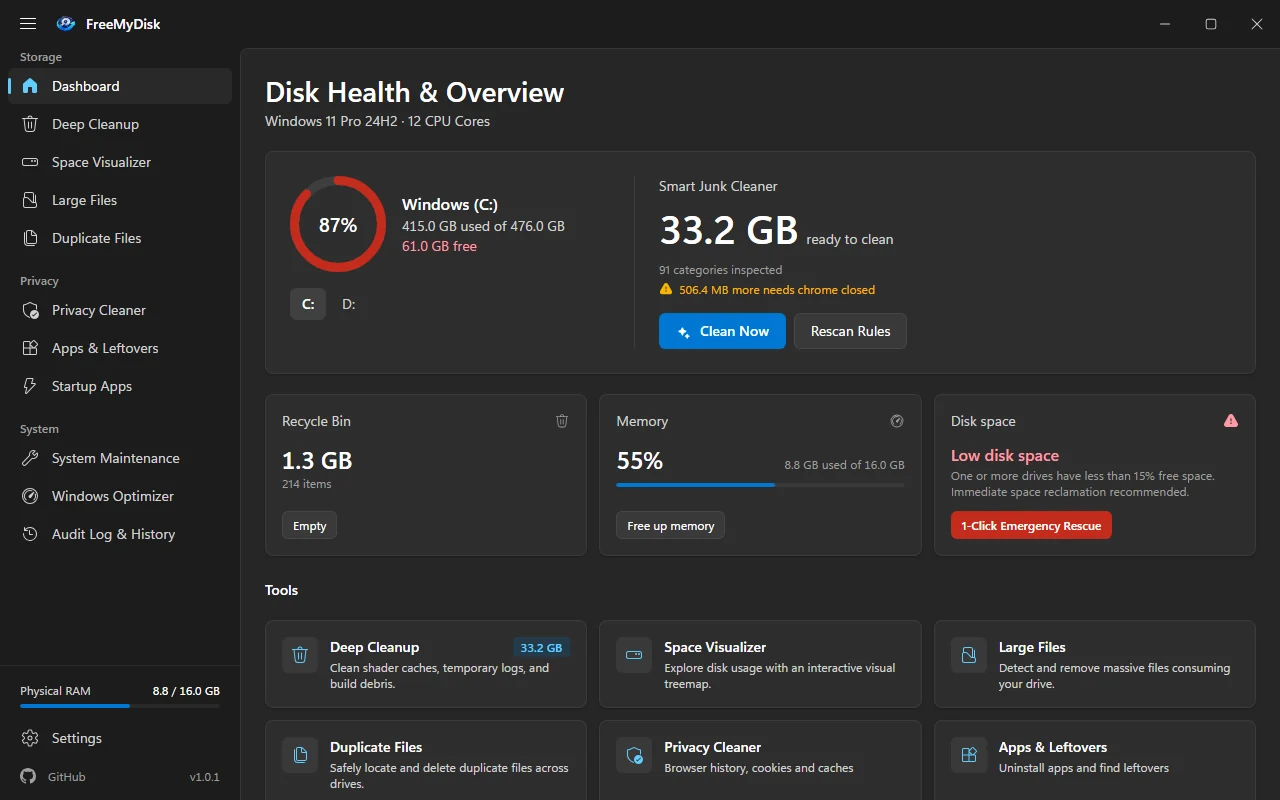
- how full each drive is (select
C:,D:… to switch drives); - Smart Junk Cleaner: how much can be cleaned right now, after checking all 122 rules;
- what needs more from you, for example “470 MB more needs chrome closed” or “2.9 MB more needs administrator rights”;
- the Recycle Bin, memory and free-space status.
2. Clean the safe junk
Select Clean Now. It cleans only what is safe and can succeed right now, then shows what was freed.
Items that need a closed app or administrator rights are listed separately. Close the app, or use Deep Cleanup, and run it again.
3. Review everything else in Deep Cleanup
Open Deep Cleanup to see every rule that found data.
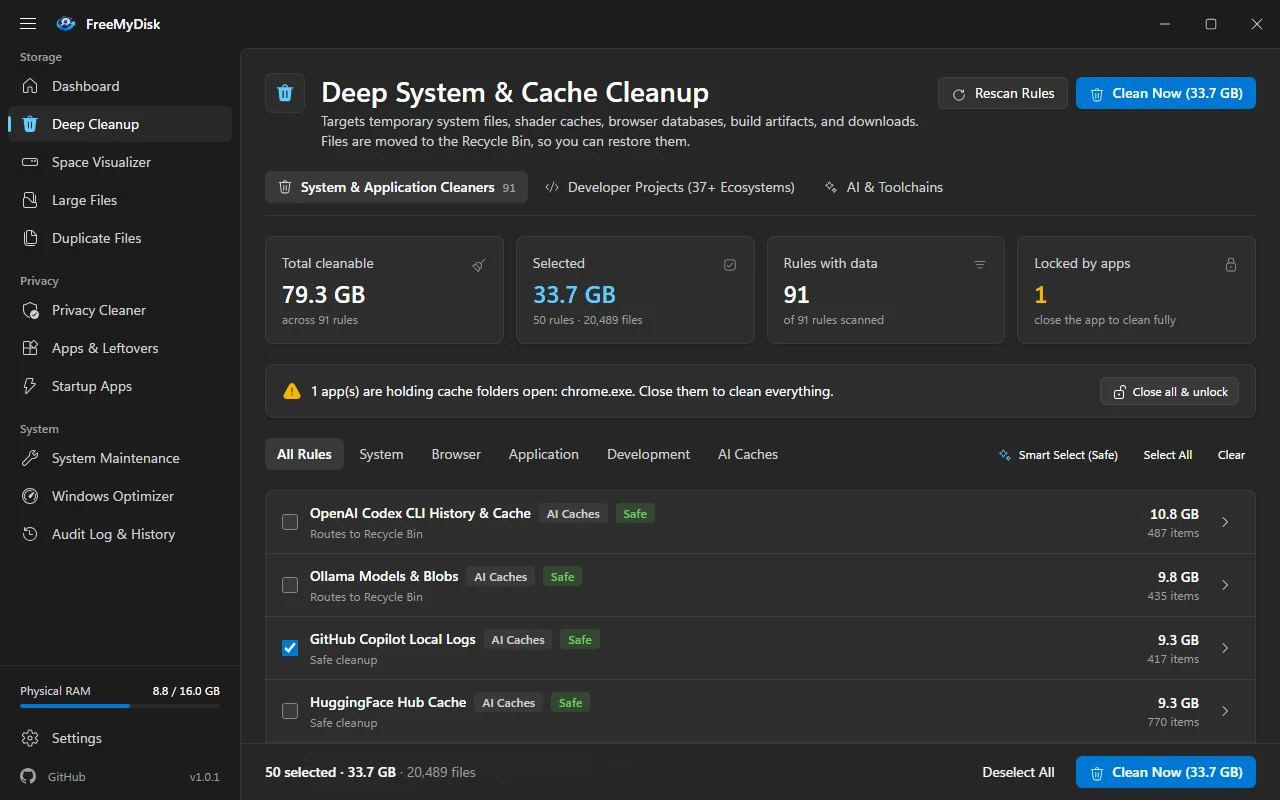
- Filter with the tabs: System, Browser, Application, Development, AI Caches. If an app such as Chrome is running, select Close all & unlock so its caches can be cleaned too.
- Each row shows the rule’s risk (Safe, Low, Moderate …), its owner app and its size.
- Select Smart Select (Safe) to tick the curated default set of about 60 safe, rebuildable caches, or tick rows yourself. AI models and package stores are never ticked for you.
- Select Clean and confirm.
4. Find the big things
- Large Files lists the biggest files on every drive. Tick the ones you don’t need and move them to the Recycle Bin.
- Duplicate Files finds byte-identical copies. One copy of every group is always kept.
- Space Visualizer shows a treemap of a drive or folder, so you can see where the space went.
5. Empty the Recycle Bin when you’re sure
Everything FreeMyDisk removes goes to the Recycle Bin first, so nothing is gone yet. When you are sure you don’t miss anything, empty the Recycle Bin from the Dashboard to free the space for real.
Tip Keep Settings → Always Route to Recycle Bin turned on. It is on by default, and it is what makes every cleanup reversible.
Next steps
- Tools Guide: every tool in detail, with screenshots
- Safety Model: what FreeMyDisk will never touch
- Command Line Interface: automate cleanups