Duplicate Files finds files that are byte-for-byte identical, wherever they are, and helps you keep exactly one copy of each.
How matching works
FreeMyDisk compares content, never just names or dates, in three stages:
- Size. A file whose size no other file has can’t have a duplicate.
- Sample hash. A quick hash of a few small parts of each remaining file.
- Full BLAKE3 hash of every byte of the files that still match.
Only files that match at every stage are shown, which is why the page says Exact Match. Each physical file is listed once, even when two scan folders overlap or a mapped drive reaches the same file twice.
Run a scan
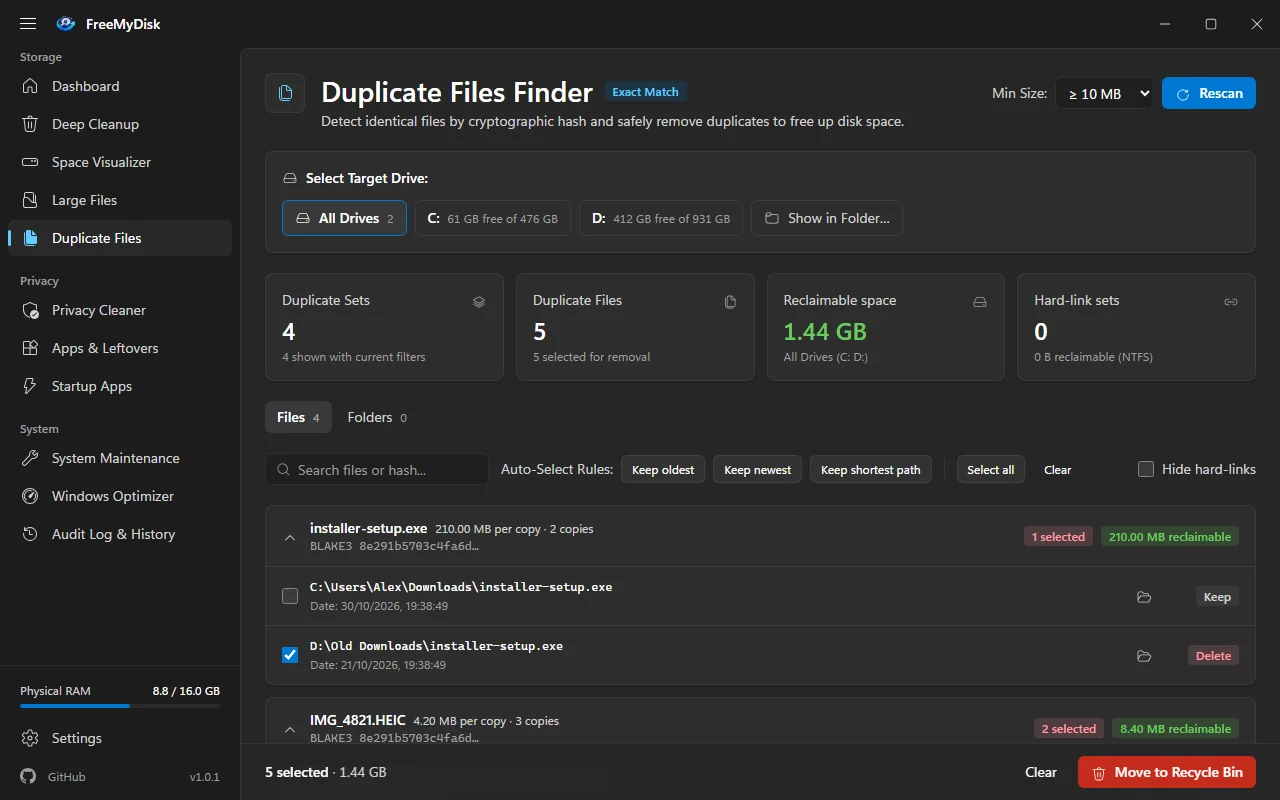
- Choose a Min Size, 10 MB by default. A larger minimum is much faster and still finds the copies that waste the most space.
- Choose All Drives, one drive, or Show in Folder… for one folder.
- Select Scan.
The summary shows the number of duplicate sets, how many files are selected for removal, the reclaimable space, and the number of hard-link sets.
Choose what to keep
Each set shows the file name, the size per copy, the number of copies and the hash. For each copy you see its full path and date.
- Auto-Select Rules pre-select copies for removal: Keep oldest, Keep newest or Keep shortest path.
- Tick or untick any copy yourself. The Keep and Delete labels show what will happen to each one.
- At least one copy of every set is always kept. FreeMyDisk won’t let you select them all.
- The Folders tab finds whole folders that are identical.
Move to Recycle Bin moves the selected copies. Check your photo and music apps afterwards, then empty the Recycle Bin.
Hard links
A hard link is a second name for the same data on an NTFS drive. Two hard-linked paths look like duplicates but use the space only once. FreeMyDisk detects them, counts them as 0 bytes reclaimable, and never selects them. Hide hard-links removes them from the list.