If you have ever checked what is filling your user folder, you have probably met AppData. It is hidden by default, it is often 10–50 GB, and it is full of folders with names you don’t recognise. It looks like the perfect place to clean, and partly it is. But AppData also holds your app settings, saved games, email data and browser profiles, so deleting the wrong folder can cost you more than the space you gain.
This guide explains what AppData is, which folders inside it are safe to empty, which you must leave alone, and how to find out which app is actually using the space.
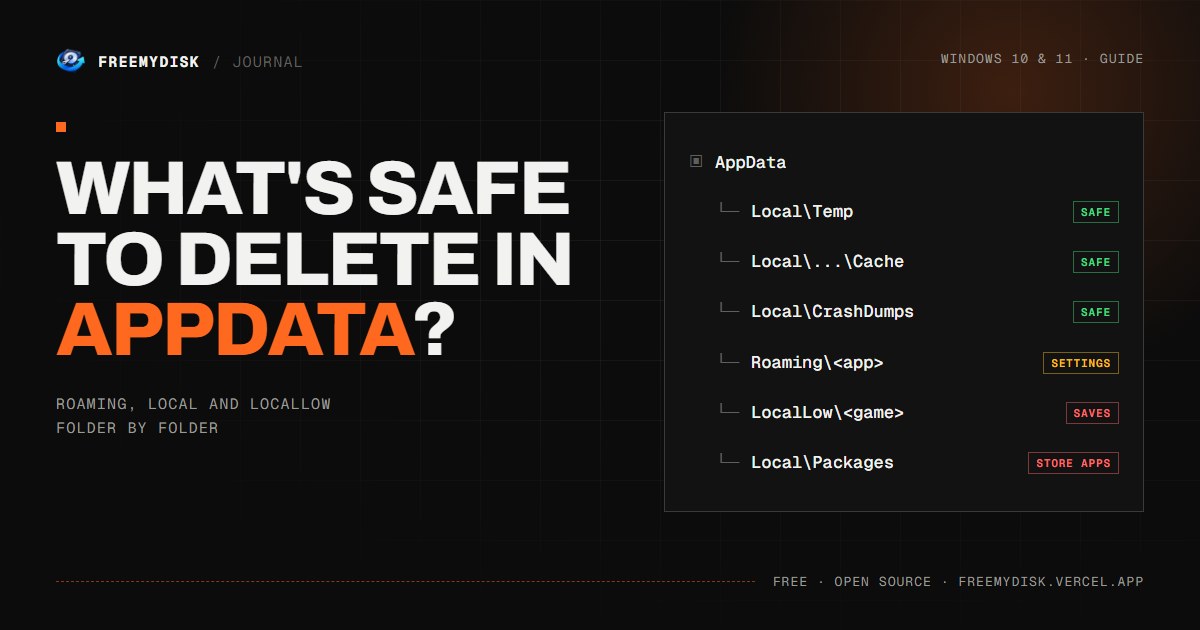
The short answer Never delete AppData itself, or a whole app folder you don’t understand. It is safe to empty
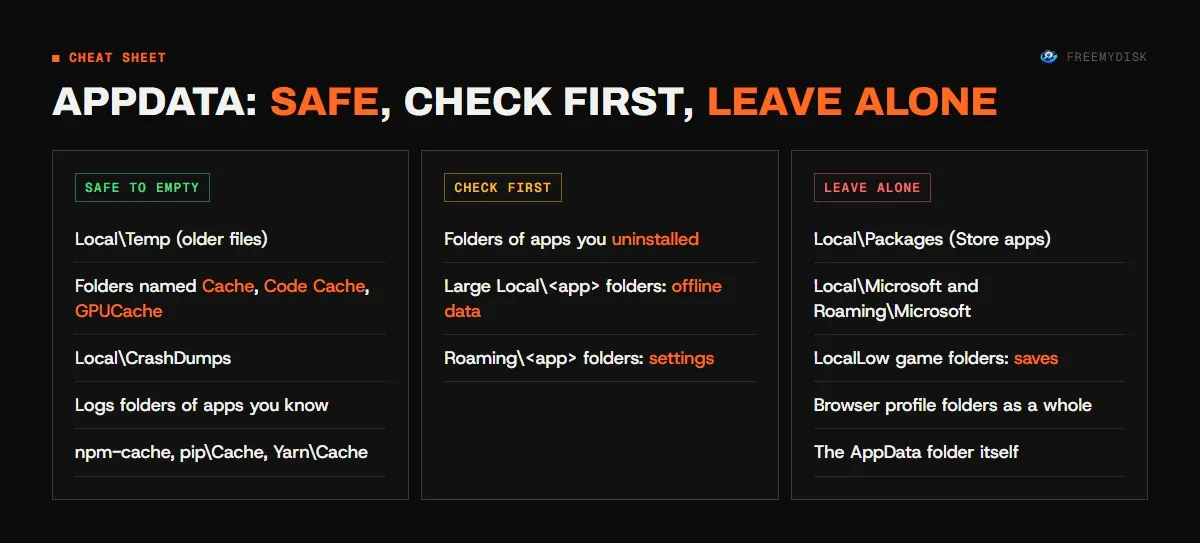
Local\Temp, folders namedCache,Code CacheandGPUCache,Local\CrashDumps, and the caches of package managers such as npm and pip. LeaveLocal\Packages, theMicrosoftfolders andLocalLowgame folders alone.
What is AppData?
AppData is a hidden folder in every user profile, at C:\Users\YourName\AppData. Apps use it to store data for your account: settings, logins, caches, logs and sometimes large amounts of content. Each user on the PC has their own AppData, so apps can keep separate settings for each person.
To open it, press Win + R and type one of these:
%APPDATA%opensAppData\Roaming.%LOCALAPPDATA%opensAppData\Local.%USERPROFILE%\AppDataopens the AppData folder itself.
Roaming, Local and LocalLow
AppData has three subfolders, and the difference between them tells you a lot about what is inside.
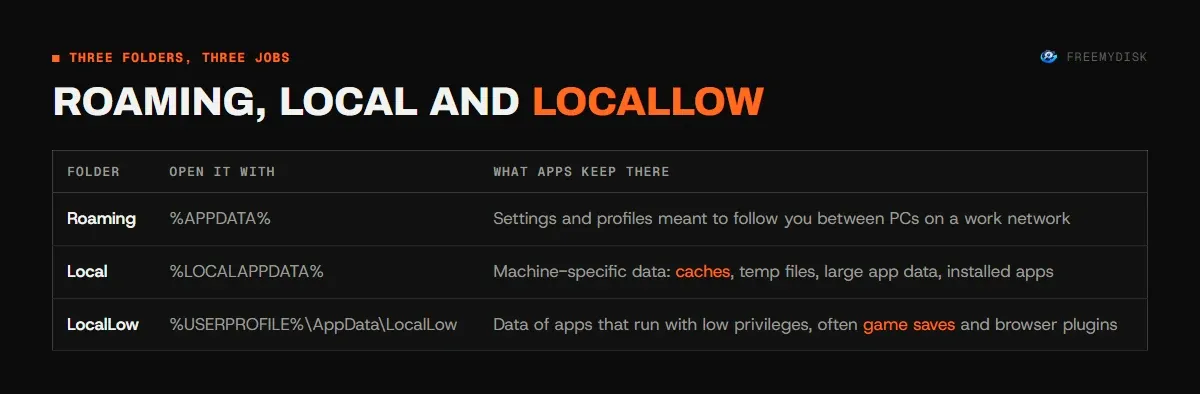
- Roaming is for settings that should follow you. On work networks with roaming profiles, Windows copies this folder to the server when you sign out and back when you sign in on another PC. Apps keep it small, mostly settings and profiles. Deleting an app’s Roaming folder usually resets that app.
- Local is for data that belongs to this PC: caches, temporary files, logs, large app data and sometimes whole apps installed per user. This is where most of the space goes.
- LocalLow is for apps that run with restricted privileges, such as some games and browser plugins. Many Unity games store their saves here, so be careful.
How to find what is using the space
Before deleting anything, find out which folders are big. This PowerShell command lists the 20 largest folders in Local and Roaming:
$roots = "$env:LOCALAPPDATA", "$env:APPDATA"
$roots | ForEach-Object { Get-ChildItem $_ -Directory -Force -ErrorAction SilentlyContinue } | ForEach-Object {
  [pscustomobject]@{
    GB     = [math]::Round(((Get-ChildItem $_.FullName -Recurse -File -Force -ErrorAction SilentlyContinue | Measure-Object Length -Sum).Sum / 1GB), 2)
    Folder = $_.FullName
  }
} | Sort-Object GB -Descending | Select-Object -First 20 | Format-Table -AutoSize
It can take a minute on a large profile. The result usually points at one or two apps, and that tells you which section of this guide to read.
Safe to empty
These folders hold data that apps rebuild automatically. Close the app first, then delete the contents of the folder, not the folder itself.
Local\Temp
This is your personal temporary folder, the same one %TEMP% points to. Installers, archive tools and many apps unpack files here and forget to remove them. It can reach several gigabytes.
- Close your apps.
- Press Win + R, type
%TEMP%and press Enter. - Select everything with Ctrl + A and press Delete.
- When Windows says a file is in use, tick Do this for all current items and choose Skip.
Files that are in use belong to apps that are running, and skipping them is exactly right. Disk Cleanup’s Temporary files option and Storage Sense clean the same folder automatically, but only files older than a few days.
Cache folders of apps you know
Many apps built on web technology, including Discord, Slack, Teams, Spotify, VS Code, Notion, Figma and Docker Desktop, keep a browser-style cache inside their folder. Look for subfolders named:
CacheorCache_DataCode CacheGPUCacheDawnCache,ShaderCacheorGrShaderCache
These are safe to empty with the app closed. The app rebuilds them on the next start, and you stay signed in, because logins are stored elsewhere.
Local\CrashDumps
When an app crashes, Windows can save a memory dump here. They are only useful if you are reporting the crash to the developer. Otherwise, delete them.
Package manager caches
Developer tools keep copies of every package they download:
| Tool | Folder | Command to clear it |
|---|---|---|
| npm | Local\npm-cache |
npm cache clean --force |
| pnpm | Local\pnpm\store |
pnpm store prune |
| Yarn | Local\Yarn\Cache |
yarn cache clean |
| pip | Local\pip\Cache |
pip cache purge |
| NuGet | Local\NuGet\v3-cache and %USERPROFILE%\.nuget\packages |
dotnet nuget locals all --clear |
Using the tool’s own command is safer than deleting the folder, because the tool knows which files are in use. Our npm, pnpm and Yarn cache guide goes into detail.
Log folders
Folders named logs or Logs inside an app’s folder hold diagnostic logs. They are safe to delete for apps you know, but they are usually small. Clean them only if one has grown unusually large.
Check first
Folders of apps you have uninstalled
Uninstallers often leave their AppData folders behind, on purpose, so your settings come back if you reinstall. If you are sure you won’t, these folders are safe to delete. Before you do:
- Open Settings › Apps › Installed apps and confirm the app is really gone.
- Watch out for folders named after the company, not the app. A folder called
JetBrains,AdobeorMicrosoftcan belong to several apps, only some of which you removed. - Delete the folder to the Recycle Bin, and keep it there for a few days.
Large data folders of apps you use
Some apps keep their real content in Local, not just a cache:
- Spotify keeps downloaded songs for offline listening in
Local\Spotify\StorageorData. You can limit the cache size in Spotify’s settings instead of deleting it. - Steam, Epic Games and other launchers keep web caches here, but your games live elsewhere.
- Docker Desktop and WSL keep their virtual disks under
Local, often tens of gigabytes. Don’t delete them by hand: our Docker and WSL guide shows how to shrink them safely. - AI apps may keep models in
Localtoo. See our guide to how much space AI apps use.
For these, use the app’s own settings to clear or move data, rather than deleting folders.
Roaming\<app> folders
Deleting an app’s Roaming folder resets it: you lose its settings, and sometimes its local history or profiles. It is a useful fix for an app that won’t start, but it frees little space. Rename the folder instead of deleting it (for example to AppName.old), so you can put it back if the reset doesn’t help.
Leave alone
Local\Packages. Every Microsoft Store app, including Photos, Calculator, Teams (new), WhatsApp and Windows’ own components, stores its data here. Remove a Store app’s data from Settings › Apps › Installed apps › Advanced options › Reset, never by deleting its folder.Local\MicrosoftandRoaming\Microsoft. These hold Windows and Office data, including your Start menu, credentials, Outlook data files (.ost) and certificates. Specific subfolders can be cleaned with Windows’ own tools, but don’t delete files here by hand.LocalLowgame folders. Many games keep saves and settings here. Deleting them can lose your progress unless the game uses cloud saves.- Browser profile folders as a whole.
Local\Google\Chrome\User Data,Local\Microsoft\Edge\User Dataand Firefox’s profiles hold bookmarks, passwords, extensions and history. Only their cache subfolders are safe to empty, as explained in our browser cache guide. - The AppData folder itself, or Local and Roaming as a whole.
The usual big folders, and what to do about each
These are the folders that most often top the list from the PowerShell command above:
| Folder | What it is | What to do |
|---|---|---|
Local\Google\Chrome, Local\Microsoft\Edge, Local\BraveSoftware |
Browser profiles and caches | Clear the cache in the browser, or empty only its cache folders |
Roaming\discord, Roaming\Slack, Roaming\Code |
Chat apps and VS Code, with web caches | Close the app, empty Cache, Code Cache and GPUCache |
Local\Packages\MSTeams_… and other Store apps |
Microsoft Store app data | Use Reset or Repair in Settings › Apps |
Local\Spotify |
Offline music and cache | Change the cache limit or storage location in Spotify |
Local\Docker, Local\wsl, Local\Packages\…Ubuntu… |
Docker and WSL virtual disks | Prune and compact, don’t delete |
Local\npm-cache, Local\pip, Local\Yarn |
Package manager caches | Use each tool’s clean command |
Local\Temp |
Temporary files | Empty it with apps closed |
Local\Microsoft\Outlook |
Outlook’s offline mailbox (.ost) |
Lower Mail to keep offline in Outlook’s account settings |
Local\NVIDIA, Local\AMD, Local\D3DSCache |
Graphics shader caches | Safe to empty, games rebuild them |
If one folder is far larger than everything else, deal with that app first. Cleaning twenty small folders rarely matters as much as fixing the one big one.
Can you move AppData to another drive?
Not in a supported way. Windows lets you move Documents, Pictures, Videos and the other library folders through their Properties › Location tab, but AppData has no such option, and moving it with links or registry edits breaks apps and Windows updates.
What you can move is the big data inside AppData, using each app’s own setting: Docker Desktop’s disk image location, Spotify’s offline storage location, a game launcher’s library folder, or the OLLAMA_MODELS and HF_HOME variables for AI models. That frees the same space without the risk.
Common mistakes
- Deleting a whole app folder because it is big. You lose settings and sometimes data, and the app may recreate the same folder at the same size within days, because the size came from a cache you could have cleared directly.
- Cleaning while apps are running. Files in use can’t be deleted, and an app whose cache disappears while it is running can behave strangely until restarted.
- Using “registry and AppData cleaners” that remove everything unknown. A folder you don’t recognise isn’t necessarily junk. When in doubt, search the folder name, or leave it.
- Forgetting the Recycle Bin. Files you delete from AppData go to the Recycle Bin, so empty it when you are sure.
Clean AppData safely with FreeMyDisk
FreeMyDisk is a free, open-source disk cleaner for Windows 10 and 11, designed around the rules in this guide. Instead of offering “delete AppData folders”, it knows which folder belongs to which app and which parts are cache:
- 122 cleanup rules that target only the cache, log and temp folders of browsers, chat apps, game launchers, developer tools and AI apps, inside AppData and elsewhere. Settings, saves, passwords and profiles are protected.
- Every item shows the app that owns it and a risk label, so a folder name you don’t recognise is never a mystery.
- If an app is running, its locked files are skipped, and FreeMyDisk offers to close the app first.
- Apps & Leftovers lists your installed apps, uninstalls the ones you choose and then scans for the folders and registry entries they left behind, so you can remove leftovers with confidence.
- Everything goes to the Recycle Bin first, with a crash-safe journal, and there is no telemetry, no ads and no account.
Summary
- AppData holds app settings, data and caches for your account. Never delete it, or Local and Roaming as a whole.
- Safe to empty:
Local\Temp, folders namedCache,Code CacheandGPUCache,Local\CrashDumps, and package manager caches (use their own commands). - Check first: folders of uninstalled apps, big data folders of apps you use, and Roaming app folders.
- Leave alone:
Local\Packages, theMicrosoftfolders,LocalLowgame folders and whole browser profiles. - Find the big folders first with the PowerShell command above, then clean only what you understand.
Frequently asked questions
Can I delete the AppData folder?
No. AppData holds the settings, profiles, saved data and caches of almost every app you use, and some of Windows' own data. Deleting it resets or breaks those apps. You can safely delete specific things inside it, such as Local\Temp and folders named Cache.
Is it safe to delete AppData\Local\Temp?
Mostly yes. It holds temporary files apps left behind. Close your apps first, and delete files that are older than a day or two. Windows won't let you delete files that are in use, which is fine: skip them.
What is the difference between AppData Roaming and Local?
Roaming is for settings that can follow you to another PC on a work network that uses roaming profiles. Local is for data that belongs to this PC only, such as caches and large app data. LocalLow is a variant of Local for apps that run with low privileges, often games and browser plugins.
Why is my AppData folder so big?
Usually because of caches: browsers, chat apps such as Discord, Teams and Slack, Spotify's offline music, game launchers, developer tools such as npm and pip, and Docker or WSL virtual disks under Local. A folder-size check of Local and Roaming shows which app is responsible.
Can I delete AppData folders of apps I uninstalled?
Yes, once you are sure you don't want the app's settings or data back. Many uninstallers leave these folders behind. Check that the app is really gone from Settings › Apps first, because some folders belong to apps with a different name than you expect.