

Every time you run npm install, pnpm install or yarn, the package manager keeps a copy of each downloaded package in a cache, so the next install is faster. The cache is never cleaned up on its own. After a year of side projects, it is common to find 5–20 GB of old package versions you will never use again, plus a node_modules folder in every project you ever cloned.
This guide shows where each JavaScript package manager keeps its cache on Windows, how to measure it, the safe command that cleans each one, and how to deal with the node_modules folders that usually take even more space than the caches.
The short answer All package manager caches are safe to clear. Run
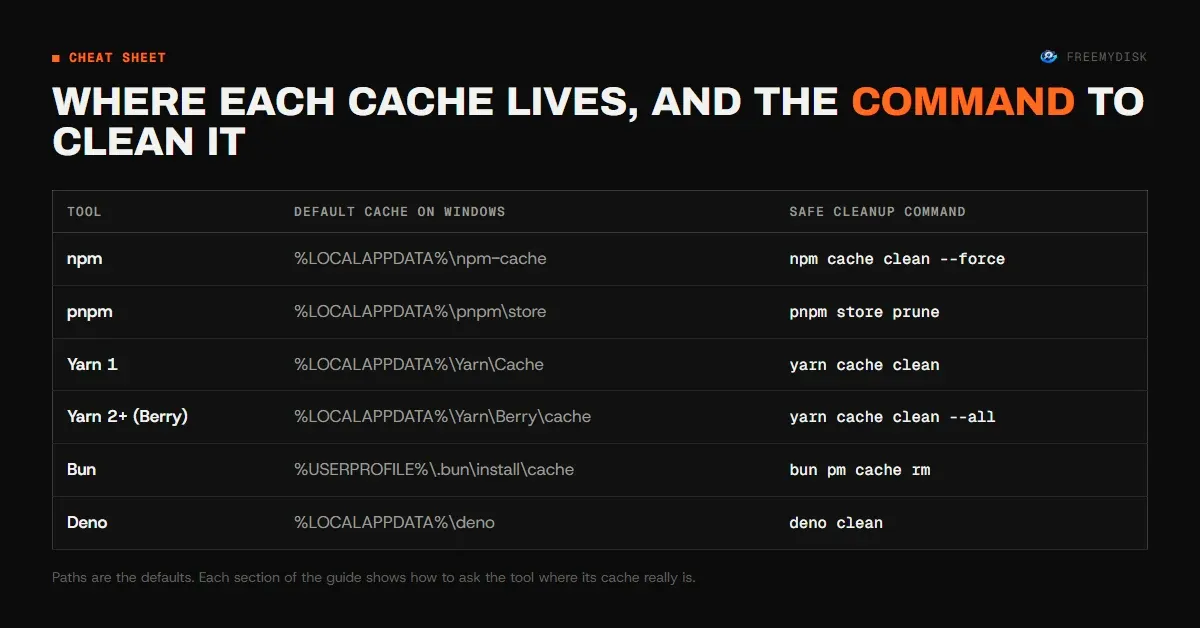
npm cache clean --forcefor npm,pnpm store prunefor pnpm,yarn cache cleanfor Yarn 1 oryarn cache clean --allfor Yarn 2 and later. Nothing in your projects is deleted. The next install downloads what it needs again.
Before you start Close your editor and stop any running
devservers and watchers. A package manager that is writing to its cache while you clean it can leave a half-written entry behind.
The five-minute version
If you only want the space back, run these in a terminal, skipping any tool you don’t have installed:
npm cache clean --force
pnpm store prune
yarn cache clean
Then delete the node_modules folders of projects you haven’t touched in months (see below). On a typical developer PC, those two steps together free several gigabytes. The rest of this guide explains each tool in detail, and what not to delete.
Why the cache gets so big
Package managers cache aggressively, for good reasons:
- Speed. Installing from a local cache is much faster than downloading from the registry, especially in CI or on a slow connection.
- Offline installs. With a warm cache,
npm install --prefer-offlineorpnpm install --offlinework without the internet. - Every version is kept. When a project updates from React 18.2 to 18.3, the cache keeps both. Across dozens of projects and years of updates, that adds up to thousands of versions.
None of the tools removes old versions automatically. The cache only ever grows, until you clean it.
Find out how much space they use
Run this in PowerShell to see the size of every cache in one go:
$paths = @(
  "$env:LOCALAPPDATA\npm-cache",
  "$env:LOCALAPPDATA\pnpm\store",
  "$env:LOCALAPPDATA\Yarn\Cache",
  "$env:LOCALAPPDATA\Yarn\Berry\cache",
  "$env:USERPROFILE\.bun\install\cache",
  "$env:LOCALAPPDATA\deno"
)
foreach ($p in $paths) {
  if (Test-Path $p) {
    $gb = (Get-ChildItem $p -Recurse -File -ErrorAction SilentlyContinue | Measure-Object Length -Sum).Sum / 1GB
    "{0,8:N2} GB  {1}" -f $gb, $p
  }
}
The paths above are the defaults. If you have changed them, ask the tool itself, as shown in each section below.
About pnpm’s number pnpm’s store uses hard links, so files in the store and in your projects’
node_modulesshare the same space on disk. The size PowerShell reports for the store is real, but you won’t get all of it back if your projects still link to those files. That is exactly whypnpm store pruneis the right tool for pnpm.
npm
npm keeps its cache in %LOCALAPPDATA%\npm-cache. To confirm the location on your PC:
npm config get cacheInside it you will find _cacache (the packages themselves), _logs (debug logs from failed installs) and _npx (packages downloaded by npx for one-off commands). The _npx folder in particular can grow quietly, because every tool you have ever run with npx is kept there.
To check the cache and remove anything that is corrupted or no longer needed, without emptying it:
npm cache verifyTo empty it completely:
npm cache clean --forcenpm asks for --force only because it wants you to know the next install will be slower. Clearing the cache doesn’t touch node_modules in any project, and it doesn’t touch your global tools in %APPDATA%\npm.
pnpm
pnpm works differently: it keeps one content-addressable store, and every project’s node_modules links into it. Each version of each file is stored once, however many projects use it. That is why pnpm uses so little space per project.
Find the store:
pnpm store pathRemove every package that no project on this PC references any more:
pnpm store pruneThis is the right command for pnpm. It only removes packages that are not linked from any project, so your existing projects keep working without a reinstall.
Good to know You can also empty the whole store. Existing projects keep working, because on the same drive their files are hard links to the store, but pnpm downloads every package again on the next install.
pnpm store prunefrees the same unused space without that cost.
A second store on another drive
Hard links only work within one drive. If your projects are on D: and the store is on C:, pnpm can’t link them, so it creates another store at the root of the project’s drive, usually D:\.pnpm-store. Check for it and prune it the same way, by running pnpm store prune inside a project on that drive.
Yarn
The command depends on which Yarn you use. Check with yarn --version.
Yarn 1 (classic)
yarn cache dir      # shows where the cache is
yarn cache clean    # empties it
The Yarn 1 cache is usually in %LOCALAPPDATA%\Yarn\Cache, with a versioned subfolder such as v6.
Yarn 2 and later (Berry)
Modern Yarn can keep a cache per project in .yarn/cache and a shared global cache, which recent versions use by default. To clear both for the current project:
yarn cache clean --allIf your project uses Zero-Installs, meaning the .yarn/cache folder is committed to Git, leave that folder alone. It belongs to the repository, not to your PC.
Bun and Deno
If you use the newer JavaScript runtimes, they have caches of their own.
Bun keeps downloaded packages in %USERPROFILE%\.bun\install\cache. Clear it with:
bun pm cache rmDeno caches remote modules, npm packages and compiled code in %LOCALAPPDATA%\deno. Deno 2 can clear it with:
deno cleanBoth are safe to clear. Projects download what they need again on the next run or install.
The bigger problem: old node_modules folders
The caches are often smaller than the node_modules folders scattered across your projects. Every project you clone and install has its own copy of its dependencies, typically 200 MB to 1 GB each, and many of those projects were finished months ago.
To list every node_modules folder under a folder and its size, run this in PowerShell. Change D:\Code to where your projects are:
Get-ChildItem "D:\Code" -Directory -Recurse -Filter node_modules -ErrorAction SilentlyContinue |
  Where-Object { $_.FullName -notmatch '\\node_modules\\.+\\node_modules' } |
  ForEach-Object {
    [pscustomobject]@{
      GB      = [math]::Round(((Get-ChildItem $_.FullName -Recurse -File -Force -ErrorAction SilentlyContinue | Measure-Object Length -Sum).Sum / 1GB), 2)
      Changed = $_.Parent.LastWriteTime.ToString("yyyy-MM-dd")
      Path    = $_.FullName
    }
  } | Sort-Object GB -Descending | Format-Table -AutoSize
It can take a while on a large folder, because node_modules contains tens of thousands of small files.
Deleting node_modules in a project you are no longer working on is safe. Everything in it can be rebuilt from package.json and the lock file (package-lock.json, pnpm-lock.yaml or yarn.lock) with one install command. Keep the lock file, because it guarantees you get the same versions back.
Tip Deleting a big
node_modulesfolder in File Explorer is slow, because of the number of files. From PowerShell,Remove-Item .\node_modules -Recurse -Forceinside the project folder is much faster, but it bypasses the Recycle Bin, so double-check the folder first.
Old Node.js versions
If you use a version manager such as nvm-windows, fnm or Volta, every Node.js version you have installed stays on disk, often 50–100 MB each, plus its own global packages. List and remove the ones you no longer use:
nvm list
nvm uninstall 16.20.2
With fnm, use fnm list and fnm uninstall. With Volta, use volta list and remove old versions from the Volta tools folder.
Move the caches to another drive
If C: is small and you have a second drive, point the caches there instead of clearing them every few weeks:
npm config set cache "D:\dev-cache\npm" --global
pnpm config set store-dir "D:\.pnpm-store" --global
yarn config set cache-folder "D:\dev-cache\yarn"     # Yarn 1
For Yarn 2 and later, set cacheFolder or globalFolder in your .yarnrc.yml. Keep the pnpm store on the same drive as your projects, so hard links keep working.
What not to delete
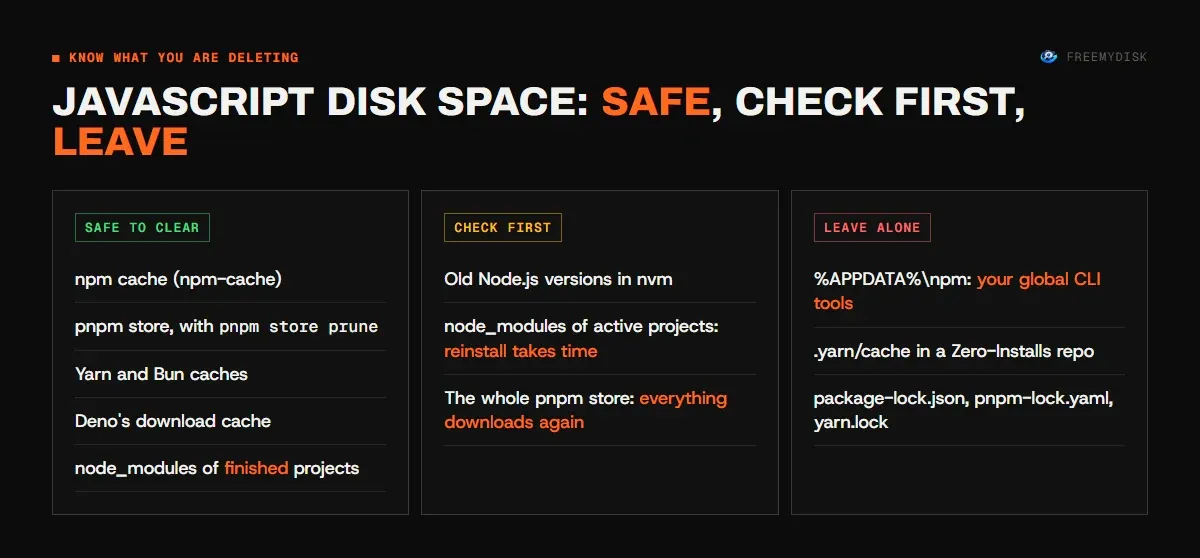
| Folder | Why |
|---|---|
node_modules in a project you are working on |
Your project needs it to run, and reinstalling takes time |
.yarn/cache in a Zero-Installs repository |
It is part of the repository |
%APPDATA%\npm |
Your globally installed command-line tools live here, not the cache |
Lock files (package-lock.json, pnpm-lock.yaml, yarn.lock) |
They pin the exact versions your project uses |
Install errors that point to the cache
Clearing the cache isn’t only about space. It is also the standard fix for a few install errors that are common on Windows:
| Error | What it usually means | What to do |
|---|---|---|
EINTEGRITY or “sha512 integrity checksum failed” |
A cached package doesn’t match the checksum in your lock file | Run npm cache verify. If it persists, npm cache clean --force, then install again |
EPERM: operation not permitted while installing |
Another program, often an editor, a dev server or antivirus, has a file in node_modules open |
Close the editor and dev servers, then install again. Clearing the cache doesn’t help here |
ENOENT for a file inside the cache |
An interrupted install left a half-written cache entry | npm cache verify, or the clean command for your package manager |
| pnpm says a package in the store is “modified” or broken | A file in the store was changed or damaged | pnpm store prune, then pnpm install. For a stubborn case, delete the project’s node_modules and install again |
If an install fails right after a VPN, proxy or registry change, check your .npmrc registry setting before clearing anything. A wrong registry looks like a cache problem but isn’t one.
How often should you clean?
For most developers, once every month or two is plenty. Clean sooner when:
- your system drive drops below about 15% free space,
- an install fails with a checksum or integrity error, which often points to a corrupted cache entry (
npm cache verifyfixes most of these), - you have just finished a big project and won’t touch its dependencies again.
In CI, don’t clear the cache at all. Cache it between runs instead, because a warm cache saves minutes on every build.
Clean every JavaScript cache in one place with FreeMyDisk
FreeMyDisk is a free, open-source disk cleaner for Windows 10 and 11, built with developers in mind.
- Cleanup rules for the npm, pnpm, Yarn, Bun and Deno caches in their default locations, next to rules for pip, uv, Cargo, Gradle, Maven, NuGet and other toolchains. Each shows its size and a risk label.
- Developer Projects in Deep Cleanup finds
node_modules, build outputs and other dependency folders across your drives, shows how long since you last touched each project, and can select only dormant projects for you. Each item shows the command that rebuilds it, such asnpm install. - Everything goes to the Recycle Bin first, with a crash-safe journal, so you can undo a cleanup.
- No telemetry, no ads and no account.
Summary
- Package manager caches only make installs faster. Clearing them is safe.
- npm:
npm cache verifyfor maintenance,npm cache clean --forceto empty it. - pnpm:
pnpm store pruneremoves only what no project uses. Check for a second store on other drives. - Yarn 1:
yarn cache clean. Yarn 2 and later:yarn cache clean --all. - Bun:
bun pm cache rm. Deno:deno clean. - Old
node_modulesfolders and Node.js versions often use more space than the caches. Remove them from finished projects, and keep the lock files.
Frequently asked questions
Is it safe to clear the npm cache?
Yes. The npm cache only holds copies of packages that npm downloaded before, so the next install is faster. Clearing it doesn't touch node_modules in any project or your globally installed tools. The next npm install simply downloads what it needs again.
Where is the npm cache on Windows?
By default in %LOCALAPPDATA%\npm-cache, for example C:\Users\YourName\AppData\Local\npm-cache. Run npm config get cache to see the exact folder on your PC.
What is the difference between npm cache clean and npm cache verify?
npm cache verify checks the cache, removes corrupted and unneeded entries, and keeps the rest. npm cache clean --force empties the cache completely. Use verify for routine maintenance and clean when you want the space back or suspect a broken cache.
How do I clear the pnpm cache?
Run pnpm store prune. It removes every package that no project on your PC still references, and keeps the ones your projects link to, so nothing needs to be reinstalled.
Can I delete node_modules folders?
Yes, in projects you are not working on. node_modules can always be rebuilt from package.json and the lock file with npm install, pnpm install or yarn. Deleting it in a project you are using means you have to reinstall before you can run it again.
Will clearing the cache break my global npm packages?
No. Global packages are installed in %APPDATA%\npm, not in the cache. Leave that folder alone, because it holds the command-line tools you installed with npm install -g.