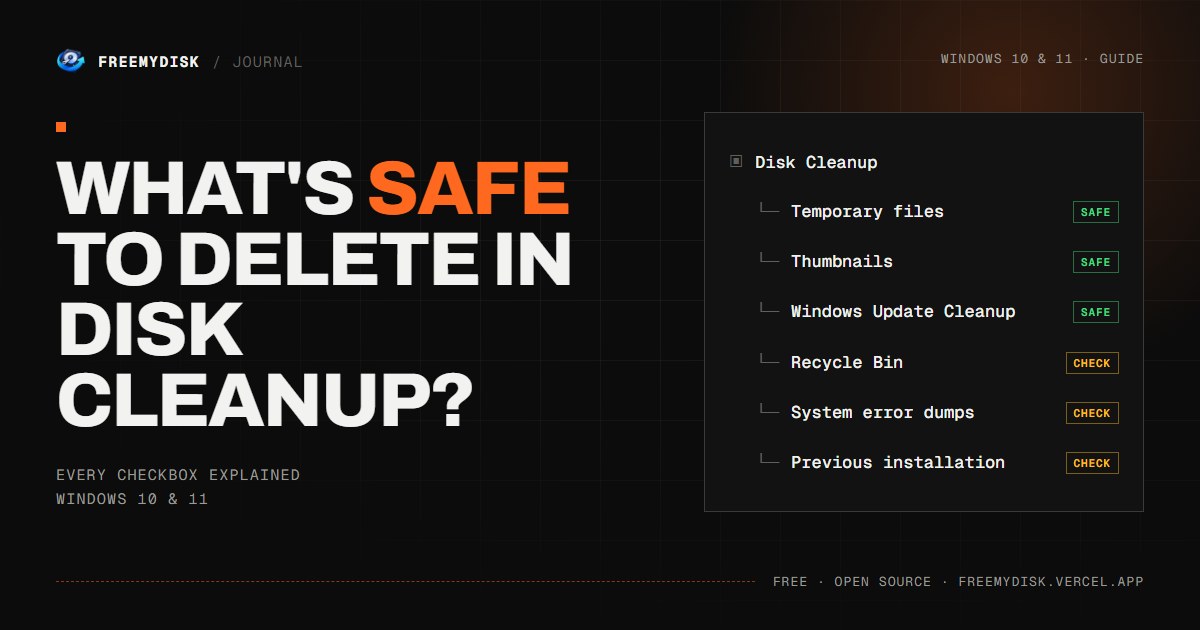
Disk Cleanup has been part of Windows for almost 30 years, and it still frees more space than most people expect. The hard part is the list of checkboxes. “Delivery Optimization Files”, “Device driver packages”, “Windows ESD installation files”: the descriptions are short, and the wrong guess can feel risky.
This guide explains every option in plain English: what it removes, how big it usually gets, whether it is safe, and the few that deserve a second thought.
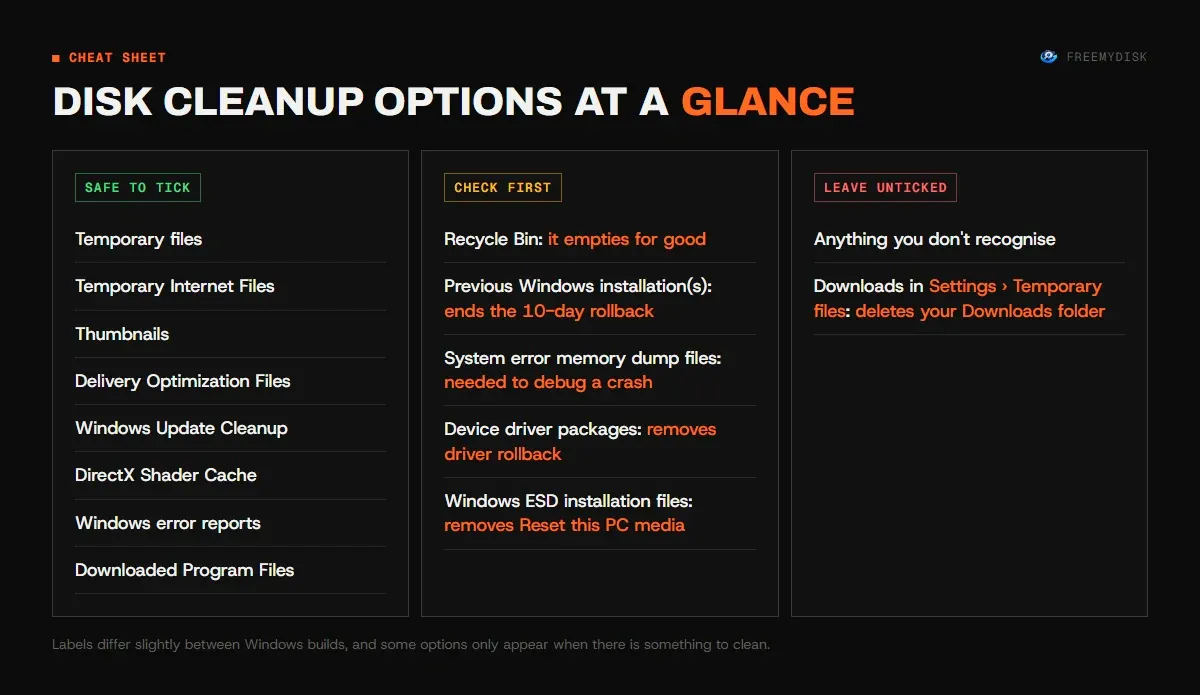
The short answer Everything Disk Cleanup offers is safe for Windows itself. Nothing it removes will stop your PC from starting or break an app. Only four options take away something you might want: Recycle Bin, Previous Windows installation(s), System error memory dump files and Device driver packages. Read their sections before you tick them.
How to open Disk Cleanup (the right way)
There are two ways to run Disk Cleanup, and only one of them shows the big items.
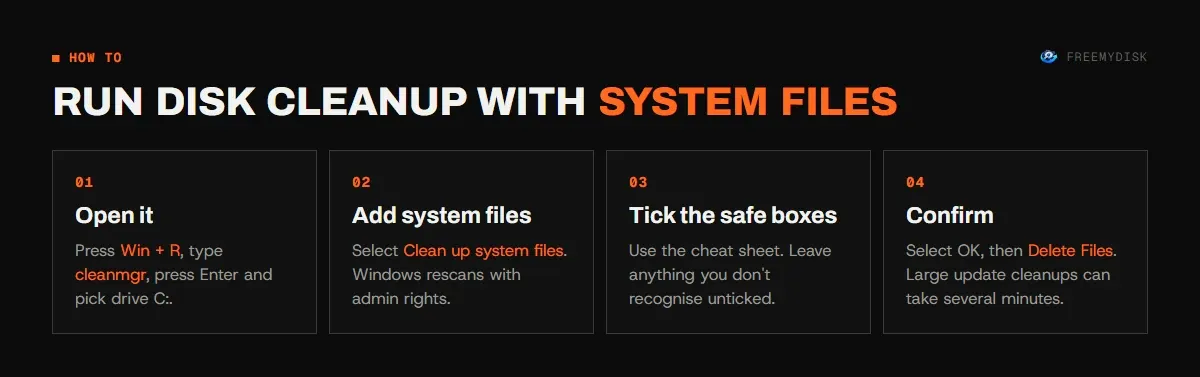
- Press Win + R, type
cleanmgrand press Enter. You can also search for “Disk Cleanup” in the Start menu. - Pick drive C: and select OK. Disk Cleanup scans for a few seconds.
- Select Clean up system files. Windows asks for administrator rights and scans again.
The first scan only shows files that belong to your user account. The second scan adds the system items: Windows Update Cleanup, Previous Windows installation(s), Delivery Optimization Files and the rest. These are usually where the gigabytes are, so always use Clean up system files.
Tip Each option only appears when there is something to clean. If you don’t see “Windows Update Cleanup” or “Previous Windows installation(s)”, your PC simply has nothing in that category right now.
Every Disk Cleanup option, explained
The options below are in the order Disk Cleanup usually lists them. Your list will be shorter. Windows hides empty categories, and some only exist on certain builds.
Downloaded Program Files
Safe. These are ActiveX controls and Java applets that Internet Explorer downloaded to run old web pages. On almost every modern PC this is 0 bytes, and nothing you use today needs it.
Temporary Internet Files
Safe. This is the web cache of Internet Explorer and the old (pre-2020) version of Microsoft Edge, along with some apps that still use the same Windows web component. Deleting it only means those pages load from the internet again.
It does not clean Chrome, Firefox, Brave or the current Edge. Each of those browsers keeps its own cache folder that Disk Cleanup never touches.
Windows error reports and feedback diagnostics
Safe. When an app crashes, Windows collects a small report to send to Microsoft. Once a report has been sent, or when you have no plans to investigate the crash, the copy on your PC is no longer useful. These are usually tens of megabytes.
You may also see System archived Windows Error Reporting and System queued Windows Error Reporting. They are the same kind of reports and are just as safe to remove.
DirectX Shader Cache
Safe. Games and apps that use your graphics card compile shaders, small programs the GPU runs, and save them so the next start is faster. If you delete the cache, it is rebuilt automatically. The only side effect is that the first launch of a game afterwards can take a little longer or stutter for a moment while it compiles again.
Delivery Optimization Files
Safe. Windows can download updates from other PCs on your network, and from the internet, instead of only from Microsoft. To make that work, it keeps copies of update pieces to share. Those copies are what this option removes.
This category can grow to several gigabytes. Deleting it has no effect on Windows itself. If you never want to share updates, you can turn the feature off in Settings › Windows Update › Advanced options › Delivery Optimization.
Device driver packages
Check first. Windows keeps older versions of drivers in its driver store, so you can roll back if a new driver causes trouble. This option removes the older copies and keeps the one you are using.
It is safe for a PC that works well today. If you have just updated a graphics, audio or network driver and are still testing it, wait until you are sure you won’t need Roll back driver in Device Manager.
Language resource files
Safe, as long as you don’t use the languages. These are language packs and keyboard resources that are installed but not in use. If you switch display languages, or type in another script now and then, leave this unticked.
Recycle Bin
Check first. This is the one option that removes your own files. Everything you have deleted in File Explorer sits in the Recycle Bin until you empty it, so ticking this box deletes all of it permanently.
Open the Recycle Bin first and sort by Date Deleted. Restore anything you still want, then let Disk Cleanup empty the rest.
Temporary files
Safe. These are files apps left behind in your Temp folders. Disk Cleanup only removes temporary files that are more than seven days old and not in use, so it won’t interfere with an installer that is running right now.
Thumbnails
Safe. File Explorer saves a small preview of your photos, videos and documents so folders open quickly. Deleting the thumbnail cache only means previews are drawn again the next time you open a folder. On a PC with many photos, folders may load a little slower once.
Windows Update Cleanup
Safe. When an update replaces a system file, Windows keeps the old version in the component store, the C:\Windows\WinSxS folder, so the update can be uninstalled. Windows Update Cleanup removes those older versions once a newer update has replaced them.
After it runs, you can no longer uninstall the updates it cleaned up. That is the only trade-off, and on a stable PC it is a small one. This category is often the biggest one in the list, from a few hundred megabytes to over 10 GB. The cleanup can take several minutes and may continue during the next restart.
Known issue on Windows 11 24H2 Some PCs show about 8.63 GB under Windows Update Cleanup that never seems to go away. Microsoft has confirmed this is a reporting error caused by the new checkpoint cumulative updates. The space is freed on the first run, and the number shown afterwards is inflated.
Previous Windows installation(s)
Check first. After a feature update (for example from Windows 10 to Windows 11, or from 23H2 to 24H2), Windows keeps your old installation in C:\Windows.old. This is what powers Settings › System › Recovery › Go back. It is often 10–30 GB.
Windows removes it automatically after the rollback period, which is usually 10 days. If you have used the new version for a few days and everything works, deleting it early is safe. Once it is gone, you can no longer go back to the previous version.
Windows upgrade log files
Safe. These are setup logs from a Windows upgrade. They only matter if an upgrade failed and you are trying to find out why. Otherwise you can delete them.
Temporary Windows installation files
Safe, unless an upgrade is in progress. Windows Setup stages files in hidden folders such as C:\$Windows.~BT while it prepares an upgrade. If you are not in the middle of upgrading, they are leftovers.
Windows ESD installation files
Check first. Some PCs keep a compressed copy of Windows that Reset this PC can use. If you remove it, resetting your PC still works, but Windows needs to download the files or ask you for installation media. If you have a fast connection, this is rarely a problem.
System error memory dump files
Check first. When Windows crashes with a blue screen, it can save the contents of memory to C:\Windows\MEMORY.DMP and smaller “minidump” files. A full memory dump can be as big as your RAM.
If you are not investigating a crash, or the crash was months ago, delete them. If you are working with support, a driver vendor or Microsoft on a blue screen, keep them until the problem is solved.
Microsoft Defender Antivirus
Safe. These are non-critical files Microsoft Defender no longer needs, such as old scan data and update leftovers. Your protection is not affected.
Setup log files and RetailDemo Offline Content
Safe. Setup log files are logs from Windows and app installations. RetailDemo Offline Content is demo material for PCs used in shop displays. If you see it on your own PC, nobody needs it.
What happened to the Downloads option?
Windows 10 version 1809 added a Downloads checkbox to Disk Cleanup. It deleted the whole Downloads folder, and many people ticked it without reading. After reports of lost files, Microsoft removed it from Disk Cleanup in Windows 10 version 2004.
The same idea still exists elsewhere. Settings › System › Storage › Temporary files in Windows 10 and 11 lists Downloads next to the safe categories. Check that list carefully, because ticking it removes your downloaded files, not just temporary ones.
Disk Cleanup or Storage settings: which should you use?
Microsoft calls Disk Cleanup a legacy tool and points people to Settings › System › Storage. Both clean much the same Windows categories:
Disk Cleanup (cleanmgr) |
Settings › Storage › Temporary files | |
|---|---|---|
| Where | Start menu › Disk Cleanup | Settings › System › Storage |
| System files | After Clean up system files | Shown by default |
| Downloads folder | Removed in version 2004 | Listed, check before ticking |
| Schedule it | With /sageset and /sagerun |
With Storage Sense |
| Status | Legacy, still included | Recommended by Microsoft |
Use whichever you prefer. The results are similar. Disk Cleanup is quicker to open and makes it harder to tick Downloads by accident. Settings is the one Microsoft keeps improving.
Automate Disk Cleanup with a saved preset
Disk Cleanup can remember a set of checkboxes and run them without asking, which is handy for a monthly cleanup or a scheduled task.
-
Open PowerShell or Command Prompt as administrator.
-
Save a preset. The number after the colon is the name of your preset:
cleanmgr /sageset:1Disk Cleanup opens with all categories, including system files. Tick the safe ones and select OK.
-
Run the preset at any time, without prompts:
cleanmgr /sagerun:1
You can put the /sagerun:1 command in Task Scheduler to run once a month. Don’t include Recycle Bin or Previous Windows installation(s) in an automatic preset, because you won’t see what is being removed.
What Disk Cleanup doesn’t clean
Disk Cleanup was designed when most junk came from Windows itself. Today, the biggest caches usually belong to the apps you use every day, and Disk Cleanup does not touch any of them:
- Browsers: Chrome, Edge, Firefox, Brave, Opera and Vivaldi each keep their own cache, often 1–5 GB.
- Chat and media apps: Discord, Teams, Slack, Spotify, Zoom and WhatsApp keep caches, logs and offline copies.
- Games and launchers: Steam, Epic Games and Battle.net keep shader caches and download leftovers.
- Developer tools: npm, pnpm, pip, Cargo, Gradle, Maven, NuGet and Docker can hold tens of gigabytes.
- AI apps: Ollama, LM Studio, Hugging Face and ComfyUI store models that are often 4–40 GB each.
You can clean these by hand, folder by folder. Our guides on freeing up disk space on Windows and clearing the npm, pnpm and Yarn cache show where each one lives.
Clean what Disk Cleanup misses with FreeMyDisk
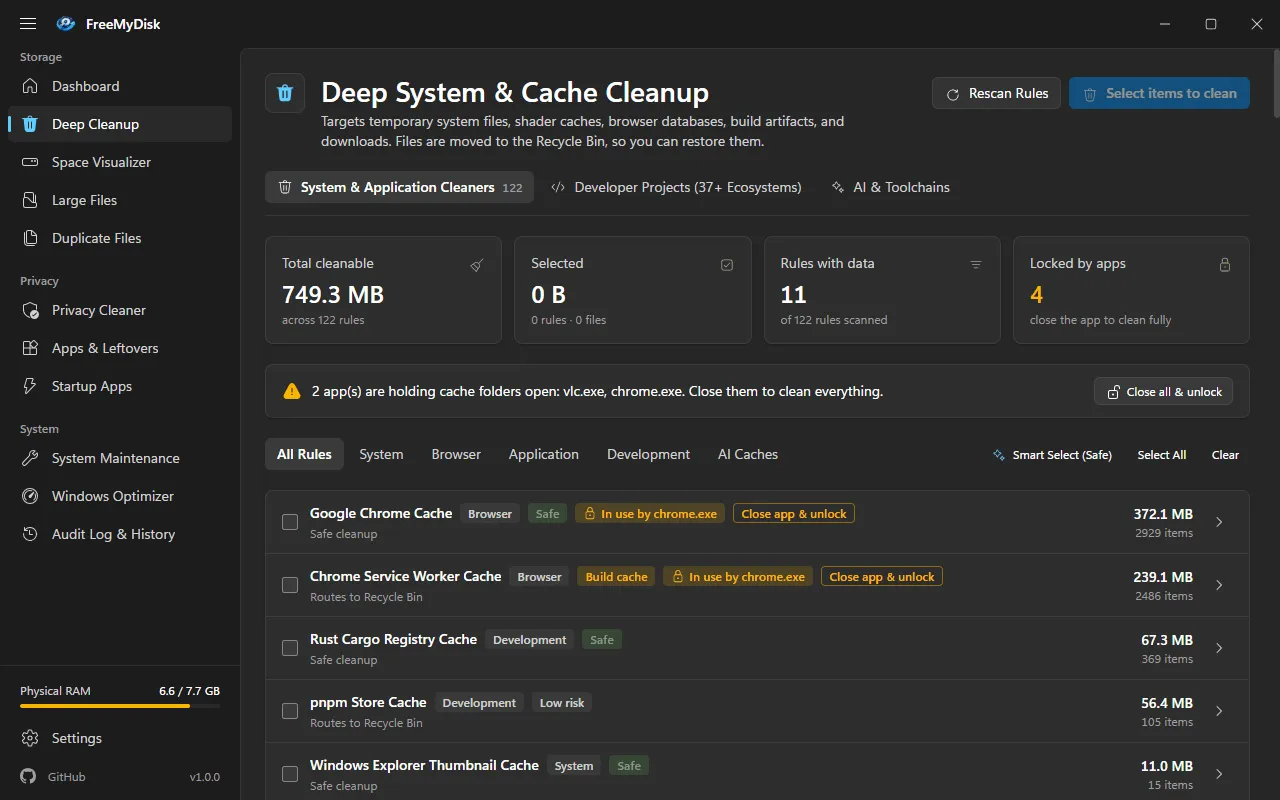
FreeMyDisk is a free, open-source disk cleaner for Windows 10 and 11 that picks up where Disk Cleanup stops. It works the way this guide does: it tells you what something is before it removes it.
- 122 cleanup rules for Windows, browsers, chat apps, game launchers, developer tools and AI apps.
- A risk label on every item, so you can see at a glance what is safe, what to check and what to leave alone. Big or valuable caches, such as AI models and package caches, are never selected for you.
- Recycle Bin first. Everything FreeMyDisk removes goes to the Recycle Bin by default, so a cleanup can always be undone.
- A crash-safe journal records each step before it happens, and files that are in use are skipped instead of forced.
- No telemetry, no ads and no account.
It also includes the Windows categories from this guide, such as temporary files, thumbnails, Delivery Optimization files and the Windows Update download cache, so you can clean everything from one place.
Summary
- Always run Disk Cleanup with Clean up system files. That is where the gigabytes are.
- Everything it offers is safe for Windows. Only Recycle Bin, Previous Windows installation(s), System error memory dump files and Device driver packages take away something you might want.
- Windows Update Cleanup and Delivery Optimization Files are usually the biggest safe wins.
- Disk Cleanup does not clean browsers, apps, developer tools or AI models. Clean those separately, by hand or with a tool that explains each item.
Frequently asked questions
Is it safe to delete everything in Disk Cleanup?
Almost. Every option Disk Cleanup offers is a file Windows can rebuild or no longer needs, so ticking them will not break Windows. Think first about four of them: Recycle Bin (it empties for good), Previous Windows installation(s) (you lose the 10-day rollback after a feature update), System error memory dump files (needed if you are debugging a crash) and Device driver packages (you lose the option to roll back to an older driver).
Is Windows Update Cleanup safe to delete?
Yes. It removes older versions of updated system components that newer updates have replaced. Windows keeps working normally. The only thing you lose is the ability to uninstall the updates it cleans up.
Is it safe to delete Delivery Optimization Files?
Yes. They are copies of updates that Windows keeps to share with other PCs. Deleting them only means your PC has fewer update pieces to share, and Windows downloads what it needs again.
Should I delete Previous Windows installation(s)?
Only once you are happy with the current version of Windows. The Windows.old folder is what lets you go back to your previous version, usually for 10 days after a feature update. After you delete it, going back is no longer possible, but nothing else changes.
Why did the Downloads option disappear from Disk Cleanup?
Microsoft removed it from Disk Cleanup in Windows 10 version 2004 because people were ticking it by accident and losing their Downloads folder. A similar Downloads option still exists in Settings › System › Storage › Temporary files, so check that list carefully.
Does Disk Cleanup clean Chrome, Firefox or app caches?
No. Temporary Internet Files only covers Internet Explorer and the old Edge. Caches from Chrome, Firefox, Brave, Discord, Spotify, Steam, developer tools and AI apps are not touched by Disk Cleanup.